


UPDATED 02.07.2025
02.07. Updated sdxl-to-flux worklow to 4.6 (fixed the SDXL CN part, it was misbehaving)
02.07. Updated Kontext workflow to 1.4 and bundled with it a Kontext inpaint workflow.
Basics:
1) Download ComfyUI portable from:
https://docs.comfy.org/installation/comfyui_portable_windows
Update ComfyUI from Update folder (using update_comfyui_and_python_dependencies.bat) REGULARLY.
2) You will need Node Manager and use it to install some custom nodes.
https://github.com/ltdrdata/ComfyUI-Manager
Remember to update your nodes regularly.
3) Lately, the Get and Set nodes don't seem to be found by the install manager. Since they are very helpful, just go to the repo and install them manually:
https://github.com/kijai/ComfyUI-KJNodes
and unzip it in:
ComfyUI\custom_nodesTo install the requirements, just go into the ComfyUI\custom_nodes\ComfyUI-KJNodes folder and copy the "requirements.txt" file and paste it in the python_embeded folder.
Then, run cmd inside the python_embeded folder (which is the folder that ComfyUI uses for all its dependencies) and run the command:
pip install -r requirements.txt4) Choose the workflow you need from the top of the Civitai page, and Download the .zip file and unzip it here:
ComfyUI\user\default\workflows 5) In ComfyUI, Load (or drag) the .json file to open the workflow.
NOTE: Using a picture onto your ComfyUI might load an older version of the workflow. Use the json files instead.
NOTE: The Prompt box has 2 boxes. Do NOT prompt into the clip_l box, it follows prompts poorly and gives weird results.
NODE COLORING:
GREEN Nodes: In these nodes you can freely change numbers to get what you want.
RED Nodes: These are my recommended settings. Feel free to experiment, though.
Blue Nodes: These are loader nodes. Ensure you load your files here (just click on a filename and select one from your options). If you don't see any option, it's because you didn't place any file in the correct path or, if you did, you might need to refresh ComfyUI.
Press "R" to refresh ComfyUI if you are adding any model, etc. while ComfyUI is running.
=============================================
FEATURES:
LORAs
\ComfyUI\models\lorasWildcards
\ComfyUI\custom_nodes\ComfyUI-Impact-Pack\wildcardsyou can place them in subfolders too.
WILDCARD NODE:
Populate mode allows you to prompt into the upper box with Wildcards.
Fixed mode allows you to prompt in the lower box without Wildcards.
LLM
\ComfyUI\models\llm_gguf\You can use an LLM AI model to generate a descriptive prompt from a shorter one that you type.
Link to the model I use (Mistral-7B-Instruct-v0.3-GGUF)
https://huggingface.co/MaziyarPanahi/Mistral-7B-Instruct-v0.3-GGUF/tree/main
Choose a quantization level that works for your PC.
ControlNet (CN)
\ComfyUI\models\controlnetBest Depth pre-processor: DepthAnythingv2
Best OpenPose pre-processor: DWPreprocessor
NOTE: You need to play with settings if you are getting weird results.
ADetailer
\ComfyUI\models\ultralytics\bbox\ComfyUI\models\ultralytics\segmIf you get a "no Dill" warning, either use a bbox model, or "no Dill" segmentation models that you can find from Anzhc on Huggingface.
If you want to install some more models for Adetailer, just search CivitAI or Huggingface.
Ultimate SD Upscaler
\ComfyUI\models\upscale_modelsUltimate SD Upscaler takes a lot of system resources! It will generate 4+ tiles that will eventually be merged to create the final image, but enhances the final image with an incredible level of detail.
As an upscaler model, I have tested many, and the best ones seem to be from the SwinIR category.
Flux Redux (IP Adapter)
Requires two files
flux1-redux-dev:
https://huggingface.co/black-forest-labs/FLUX.1-Redux-dev/tree/main
ComfyUI\models\style_modelssiglicp_vision_patch14_384
https://huggingface.co/Comfy-Org/sigclip_vision_384/blob/main/sigclip_vision_patch14_384.safetensors
ComfyUI/models/clip_visionFlux Infill Inpaint
Requires
FLUX.1-Fill-dev:
https://huggingface.co/black-forest-labs/FLUX.1-Fill-dev/tree/main
ComfyUI\models\diffusion_models=============================================
Workflows:
F.1 img2img
Version 1.1: Added LORA support, as well as the ability to set image resolution.
NOTE: Using a person's LORA while using img2img will basically work as a face changer by attaching the LORA's face to the body that is being img2img-ed.
=============================================
F.1 Style Changer (RF Inversion)
This worflow allows you to input an image, and change its style with FLUX as well as with LORAs.
Then, it takes the output and passes it through Ultimate SD Upscaler and finally to Adetailer to improve hands, etc.
NOTE: Keep the Prompts empty. Use LORAs for styling instead. This work best.
NOTE: You can use a Character LORA + face Adetailer to switch faces at this stage.
=============================================
F.1 text2img 4.0
This one does:
text2img. It can use wildcards, LORAs, and 2x ControlNet.
High Res Fix using Flux.
Ultimate SD Upscaler
Adetailer (up to 3) with LORA support.
You should look here on CivitAI for extra models for detection, such as nails, glasses, eyes, etc. It can use LORAs.
For models, see the Suggested Resources section. Those are models I am currently using.
NOTE: If you don't want to use some node or feature, just click on a node (or box select multiple while holding Ctrl) and press ctrl+b to Bypass it (it's a toggle).
NOTE on LLM: At this point I would not use it, since it has become obsolete. Just go to ChatGPT and ask for a prompt from your idea, it will give it to you even on the free version.
PRO TIP!
This workflow generates an image at each stage.
If you get a bad result at any step:
1) CANCEL the process from the queue.
2) Load in ComfyUI the last good image (drag and drop in the interface).
3) Change the options that resulted in things turning bad (in adetailer, for example, you might need either increase or decrease denoise).
4) Generate the image. The process resumes from the image you are using, NOT FROM THE BEGGING, so you don't waste time! (typically valid for Adetailer, as long as it's in the cache, at least).
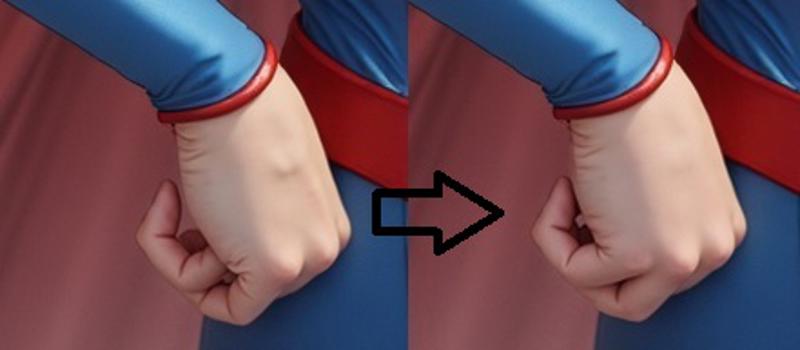 In this example, I got an insufficient hand fix. So I stopped the process, re-loaded the last good image, increased denoised in the hand detailer node, and the process resumed from the last step (the hand fix, in this case ADetailer #2) without having to re-do everything.
=============================================
F.1 text2img LLM (Upcoming update)
While an interesting concept to have "all in one" where a simple concept prompt is transformed into a verbose one, it is far easier to get it from ChatGPT, which will deliver the result without taking up your resources or needing extra models.
=============================================
SD TO FLUX Ultimate
NOTE: This workflow requires SD ControlNets (not flux)!
This one does:
STEP 1: SD txt2img (SD1.5 or SDXL/PonyXL),
ControlNet is at this stage, so you need to use the correct model (either SD1.5 or SDXL).
It has Wildcards, and SD LORAs support.
STEP 2: Flux High Res Fix
Has SD LORAs support
STEP 3: Flux USDU. One for upscaling and one for enhancing.
STEP 4: Adetailer(s) (up to 6, I typically use Face and Hands)
Important, the denoise value needed depends on the image. If you get a bad result at any stage, use the PRO TIP above.
Here, I added 3 Flux Adetailers (face, hands and feet) since they to the best job, and up to 3 SD Adetailers (for NSFW support, since SD is much better at doing these, especially in non photographic styles).
=============================================
F.1 Fill Inpainting
1. Press "choose file to upload" and choose the image you want to inpaint.
2. Right-Click on the image and select "Open in Mask Editor". There, you'll be able to paint the mask.
3. When you are done with the inpainting, press "Save ".
NOTE: This is slower than inpainting, since the whole image is re-calculated, but tends to work better.
=============================================
F.1 Inpainting (with Sampling from another image)
1. Press "choose file to upload" and choose the image you want to inpaint.
2. Right-Click on the image and select "Open in Mask Editor". There, you'll be able to paint the mask.
3. When you are done with the inpainting, press "Save to Node".
4. Sampling: You can use elements from either the same or a different image to inpaint. The second image can be any image at all (but must be same size, or resized to that). Just load it in the second Load Image Node, and mask the part you want to be used as "source material" to inpaint your first image.
If you don't want to use this option, just disable the 2nd image node (ctrl+B)
This is FAST. Only the inpainted area is re-calculated.
=============================================
SDXL inpainting (with Sampling from another image)
Why this workflow here?
As of right now, I am not getting certain "image details" from LORAs, so this is a workaround.
Just generate your images with FLUX, and then inpaint nipples and other stuff using SDXL or Pony or SD1.5 models to get your desired results.
Why not adetailer? Simple, it's faster to generate many times only the details you want rather than regenerating the whole image each time and hope the details are right. Especially in ComfyUI.
Sampling: Now you can use elements from either the same or a different image to inpaint. The second image can be any image at all (but must be same size, or resized to that). Just load it in the second Load Image Node, and mask the part you want to be used as "source material" to inpaint your first image.
If you don't want to use this option, just disable the 2nd image node (ctrl+B)
=============================================
Outpainting:
Not 100% super duper, but you can get some decent results by extending by up to 256 pixels per side. You might need a bit of RNG though.
=============================================
=============================================
DEPRECATED: aka no longer supported
High-Res fix 1.3 LITE (deprecated)
Basically, this workflow works in 2 stages:
text2img: Here I added a node that allows you to select Flux safe resolutions by clicking the dimensions button in the Green Node.
img2img: This regenerates the image at a higher resolution, the Green Node is where you select the upscaling factor, similar to A1111.
Version 1.1: Added a preview for each stage of the process.
Version 1.2: Added the dedicated Flux node for prompting. It includes the Guidance scale, but only use the T5XXL box (the lower one).
Version 1.3: Removed the secondary upscaling. It was added as a separate workflow.
=============================================
High-Res fix CN (Wildcards, Loras, ControlNet) (deprecated)
NOTE: Please use version 1.6+. Previous version were not working with LORAs properly.
2-Pass workflow:
Flux txt2img
Flux High Res Fix
This has everything High-Res fix 1.3 LITE has, plus Wildcards and LORAs support.
High-Res fix CN + Upscale (ControlNet, Wildcards, Loras, Ultimate SD Upscaler) (deprecated)
3-Pass workflow:
Flux txt2img
Flux img2img
Ultimate SD Upscale
This workflow offers everything that High-Res fix does, but also has the Ultimate SD Upscaler (upscales by creating one tile at a time of the final image).
=============================================
text2img CN (ControlNet, Wildcards and Loras) (deprecated)
1-Pass workflow:
Flux txt2img
text2img with Wildcards and LORA support. This one has no High-Res fix.
Now includes Resolution Chooser (see the high res version above for explanations).
text2img CN + Upscale (ControlNet, Wildcards, Loras, Ultimate SD Upscaler) (deprecated)
2-Pass workflow:
Flux txt2img
Ultimate SD Upscale
Just like text2img but also with Ultimate SD Upscaler.
text2img Adetailer (Wildcards, Loras, Adetailer) (deprecated)
Up to 3-pass workflow:
Flux txt2img
Adetailer #1
Adetailer #2 (disable nodes with CTRL+B if not needed).
Each Adetailer pass supports its independent prompting and LORA.
=============================================
SDXL to FLUX CN (ControlNet, Wildcards and Loras)
Works with SDXL / PonyXL / SD1.5
2-Pass workflow:
SD txt2img
Flux High Res Fix
This allows you to generate images in any of your favorite style and automatically send them to img2img with FLUX. You might need to play with the denoise value to get best results.
SDXL to FLUX CN + Upscaler (ControlNet, Wildcards, Loras, Ultimate SD Upscaler)
Works with SDXL / PonyXL / SD1.5
3-Pass workflow:
SD txt2img
Flux High Res Fix
Ultimate SD Upscaler
=============================================
Upscaling: Just like the "EXTRA" Tab in A1111 / Forge
\ComfyUI\models\upscale_modelsNot such a great way to upscale images IMO, but I included it here if you want it.
Upscaling:
The math is a bit weird. If you are using a x4 upscaler, that x4 will be applied automatically, so you need to multiply that number by the factor you want to get the final scaling factor.
Example: 4 x 0.25 = 1 (no upscaling)
Just use any upscaler you want.
Description
FAQ
Comments (40)
Prompt outputs failed validation: ImageResizeKJv2: - Required input is missing: width - Required input is missing: height ImageResizeKJv2: - Required input is missing: width - Required input is missing: height
how to fix it?
Sounds like you should be using an input image.
flux1DEVKontext_SDXL2FluxV45NSFW (1).zip в этой I can't get the versions to generate images via controlnet. How can I fix it?
You have it written, I changed it, and I get an error on the negative and promt, I don't understand how to solve this?
If you are using CN, in the KSampler below, you need to change:
Get_POSITIVE_SDXL --> Get_POSITIVE_CN
Get_NEGATIVE_SDXL --> Get_NEGATIVE_CN
Ok, I found a few errors, so I updated the Workflow. Please download version 4.6. I tested it and now it works with CN.
thanks for your work.
- which workflow i have to use for 1/modify a picture (add a plane, change color of eye, enlarge or age a person..) 2/apply a style (lego, ghibli..).
- wich model ?
- do you have tutorial because despite my numerous attempts with “redux”, “inpaint” i have very bad result.
thanks
Flux Kontext is pretty good with that.
@Daedalus_7 i use flux kontext gguf 4km. but i don't have good result with the workflow. do you advice a workflow (f1 kontext 1.4 ?) and a tutorial ?
@gandolfi2004987 I recommend reading the guides on how to use Kontext:
Hello and thanx for these wonderful workflows. I've one problem i struggle to resolve by myself.
I'm using your flux_kontext_1.4 workflow. I only want too use txt2img so i disabled the load image phases.
I've this error message : Prompt outputs failed validation: ImageStitch: - Required input is missing: image1
It requires an image but i've diabled everything. What can i do ? Is it possible to use an image without stitching it ?
The workflow requires to use at least one image as an input. Kontext is supposed to be an image editing tool. If you just want to do just text2img, you need to use a text2 img workflow.
SamplerCustomAdvanced
No module named 'sageattention' I get this error and I have no idea what to do.
It seems you activated sage attention near a flux loader node. Sage attention needs to be installed, having the node is not sufficient. If you don't want to use it, just set the sageattention node to disabled.
What worked for me is going to:
Manager > Install PIP packages > enter sageattention > Confirm
Then restart Comfyui, it will then install the required packages for you
You can also manually install the sageattention package in your python env but just let Comfyui do the heavy lifting for you
Cendr Its not work on me((
mr1sokoo230 Make sure you have installed the latest version of ComfyUI portable (it has embedded Python 3.12 , pytorch 2.7.1). Also, you need to install the Nvidia Cuda toolkit 12.8 or 12.9 is good too. Finally, you need to install the whl file for Sageattention compatible with these. Ask ChatGPT! it can help.
@Cendr I get this: This action is not allowed with this security level configuration.
thank you so much, i am a noob 😅 is there a way to type prompt without having to use wildcards because it changes the picture even if i use the same seed ):
Yes, there is. I wrote a note in the workflow on how to use the wildcard node. ;)
@Daedalus_7 thank you very much, so is it normal that the picture changes even if i use fixed mode in wildcards with the same seed, sorry for the trouble
@RAHMONY Yes, it is normal, since there are seeds also in other nodes. The seed in the wildcard has to do with the prompt, not the generation.
missing nodes in explorator comfyui
why do i get such results in Flux img2img?
https://civitai.com/images/96323987
looks like you are using the wrong VAE.
I was using this great T2I workflow until now but i am having this error recently.
No input found for flattened id [475] slot [-1]
Same here
@Cukrova_Vila Get Node, Set Node 's are the problem. I bypassed them by connecting the nodes manually. The workflow turned into a spagetti monster but it works now.
I downloaded one of the images uploaded by the author as a preview and added a workflow from it, it helped me (You should download it via the button on the civit, and not via right-click and save)
same problem as precedent : no input for flattened id [475]
resolved : Go in NodeMap (at left of your comfyui) then type 475 in search bar.
then, clone the node Get_positive and link it to the previous node.
it works. enjoy!
hi, text2img workflow, i have installed all custom nodes, but one node still missing and i couldn`t find how to fix it!! the node is the Lora Loader
Have you tried updating comfyui and all nodes? After that you need to run
update_comfyui.bat
inside the "update" folder of comfyui portable.
If that doesn't work, either use another lora loader, or install this pack manually:
i need help for make this work with another checkpoints? did i can do it?
Hey,
sorry to bother you, but i cant get your Flux T2I 4.5 Workflow to work, it always crashes , saying the "BasicGuider" node in Phase2Flux is missing "conditioning"...
How do i fix that?
It is possible that the behavior of some node has changed since i made the workflow. Some nodes used to work properly as empty (pass-through) when disabled, while sometimes they can be seen as not there instead (hence the error of a missing node).
If you are not using control net, just connect a GET node (set it to POSITIVE) and connect it to the conditioning of the BasicGuider node.
Thx, that worked... Sorry, i am absolutely new to Comfy...
I'm struggeling with phase 3 Hires Fix, I have tried many scheduler / sampler combinations and played around with the values in the Detail Daemon Sampler node, but no matter what I try, the image loses definition and ends up looking blurry.
Of course I have also tried the recommended values in the notes. Any idea, what could cause this?
I have also tried to set CFG explicitly, increased fade from 0.0 to 0.6, disabled smooth etc.
Same issue occurs even if I disable Detail Daemon Sampler, so it is probably not related to the settings in this node. But the original image from Step 2 is perfectly fine.
I would really love to use this workflow, I like how clean it looks and it has great features without too much bloat, but this issue is driving me crazy.
Thanks in advance!
Here is how it looks like:
https://pasteboard.co/KHFih8mrEsZy.png

Update after further testing: On scale_by 1.0 everything looks fine, if I increase it to 1.43 as the note suggests, the issue occurs.
I'm getting the same problem, the only "solution" is to decrease the denoise
First, thank you for your workflow. I am still doing initial testing and evaluation, but I ran into an issue with your preferred upscalers (SwimIR). ComfyUI errors out due to the loader now passing "weights_only=true" which cannot be override with environment variables.
This is not the first workflow I have had this issue with so I am confused why others are not running into this issue. I am using ComfyUI 0.6.0. Is it because I am using a newer version? Or does everyone know a workaround to this and I just really bad a Googling the solution. LOL
For now I am just using Remarci.
I have downloaded the upscaler from huggingface and I never did run an issue with it:
https://huggingface.co/licyk/sd-upscaler-models/tree/main/SwinIR
If you prefer Ramarci, just go with it.
Need help, pls.
///
Searge_LLM_Node
Searge_Output_Node
///
Where to get these two custom nodes? I can't find them on the Internet or anywhere else. Who can explain?