
civitai-sync is a tool to download and explore your Civitai creations.

Download generations (images, video, audio, 3D)
Download posts and comics
Explore your library in an offline website
Media and data saved to the file system, sorted by date
Export media for re-use
Auto-updates for new versions
The tool is free. You may express your gratitude by tipping the model, giving a thumbs-up and leaving a candid review. Enjoy. 🙏
Talk about Civitai-Sync
See comments below, and the discussion page for issues and ideas: https://civarchive.com/articles/5676


The software is:
A Command Line Interface (CLI). It runs in a terminal or command prompt, with interactive options and settings.
An Explorer, a website for browsing, searching and re-using your media.
Read on for installation instructions.
Download the tool
Download the tool from this page. It's a zip file.
On your computer, Unzip (or “Extract”) the file. It will create a new folder; rename it “civitai-sync”. Move the folder wherever you want to keep it.
Install Node.js, download it from: https://nodejs.org — if you already have Node, it needs version 18 or above.
If you have a nice new shiny clickable Node.js icon on your desktop or menu, don’t click it. You don’t need to. That’s for something else. Do this:
Install the tool
If updating from an earlier version, see "Manual software update" below.
On Windows, double-click the "install_win" file to install. This will open a command prompt, install the software dependencies and then close. Or, install manually with the steps below.
On Linux, Mac, open your Terminal app.
On Windows, your “Command Prompt”.Inside the terminal, change directory (“
cd”) to the unzipped “civitai-sync” folder. Ensure this matches the name and location on your system. For example:
cd Downloads/civitai-sync
On Windows, use backslashes, not forward-slashes, e.g:
cd C:\Downloads\civitai-syncInstall the software dependencies by typing:
npm run setup
Run the tool
Now you can run the program.
On Windows:
Double-click the "Civitai-Sync" file.
To add it as a Desktop shortcut icon, right-click on it > "Send to" > "Desktop (create shortcut)".
On Linux, Mac, or Windows:
In the terminal app, change directory ("
cd”) to the program folder, as above.Run it by typing:
civitai-sync
This is an alias for:npm run cli
Manual software update (optional)
Since v4, software updates are automatically detected. When a new version is released, you will see an option to install the update.
If you want to manually upgrade:
Download the zip file, unzip it.
Copy the unzipped files into your existing “civitai-sync” program folder, overwriting the older files.
In the terminal app, change directory ("
cd”)Type: “
npm run setup”.On Windows, double-click on “install_win”.
Create an API key
In Account Settings, see “API Keys” near the bottom of the page: https://civarchive.com/user/account
Click “Add API key”. Name it, e.g. “civitai-sync”. Click “Save”.
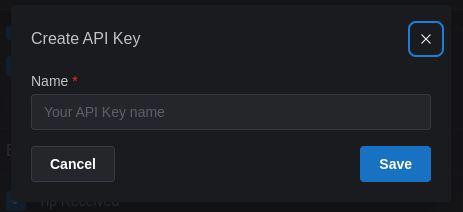
You will be shown the key only once > Copy it.
In civitai-sync, choose "Set API key", and paste the key.
(To paste, right-click > "Paste", or press "Ctrl+V" or "Ctrl+Shift+V")
Password protection
You can set a password to encrypt your API key, e.g. if you are on a shared computer. You'll enter the password each time you run the program. Or press "Enter" for no password.
Change Domain: civitai.red users
Go to Settings > Change Domain
This setting is visible for users who have "Enable Mature Settings" set at https://civarchive.com/user/account
Start Downloading
If your API key is saved, you can choose "Download".
Check the "Settings" in the CLI to change download folder, etc.
Civitai saves your generations for 30 days, so use the tool regularly.
Start the Explorer
Start the Explorer from the CLI.
Or, without the CLI:civitai-sync explorer [optional: account, e.g. "bob"]
This is an alias for:
npm run explorer [account]
On Windows, double-click Civitai-Sync-Explorer in the program folder; this uses the default config.
Data
Data is saved directly from Civitai's API, as text files (in “JSON” format). Prompts and metadata are already embedded in the media metadata (e.g. "EXIF" format).
You can explore the generation parameters and details for images and videos, in the civitai-sync Explorer.
Multiple accounts
To download from more than one account, give a unique name:civitai-sync bob
This is an alias for:npm run cli bob
Or give a full path to anywhere on the file system, and the config file will be loaded from or created there.
Set each account's download folder to be different, unless you want the data and media for the accounts to be merged.
Network access
By default the Explorer is only reachable from the machine it runs on. To access it from other devices on your trusted local network — a phone, tablet, or another computer — add the --host flag:civitai-sync explorer [account] --host
This is an alias for:npm run explorer -- [account] --host
Problems? Thoughts? Get in touch
Make a comment, start a chat.
@monkeypuzzle
Description
New: A radically improved Explorer, to seamlessly browse your library.
- Support for Audio, Comics, 3D.
- Media sorted by the type of Workflow, e.g. T2I (Text to Image), I2I (Image to Image).
- Input media: Image and video inputs are kept, in "Image to Image/Video" and "Video to Video" workflows.
- Exports: Choose a set of filters (e.g. "Favorited, uses LoRA X, includes 'apple pie' in Prompt") and create a custom folder that will auto-update with new media that match the filters. Existing Favorited, Liked and Disliked folders are converted to Exports.
- Models: Filter media by model family, model type, your own models.
- Posts: Scheduled and Draft posts.
- Requires Node version 20 or above.