


civitai-sync is a tool to download and explore your Civitai creations.
Download generations from the Civitai generator
Download posts from your public profile
Browse your creations offline, with the mini-website Explorer
Data and media is saved in date-ordered folders.
Auto-updates for new versions
Like it? Give a thumbs-up or review. ❤️
See comments below, and the discussion page for ideas and issues: https://civarchive.com/articles/5676
The program comes in 2 parts:
Command Line Interface (CLI). It runs in your computer terminal or command prompt
Explorer, a mini-website to browse your creations.
Civitai saves your generations for 30 days, so use the tool regularly.
Read on for installation instructions.
Download the tool
Download the tool from this page. It's a zip file.
On your computer, Unzip (or “Extract”) the file. It will create a new folder; rename it “civitai-sync”. Move the folder wherever you want to keep it.
Install Node.js, download it from: https://nodejs.org — if you already have Node, it needs version 18 or above.
If you have a nice new shiny clickable Node.js icon on your desktop or menu, don’t click it. You don’t need to. That’s for something else. Do this:
Install the tool
If updating from an earlier version, see "Manual software update" below.
On Windows, double-click the "install_win" file to install. This will open a command prompt, install the software dependencies and then close. Or, install manually with the steps below.
On Linux, Mac, open your Terminal app.
On Windows, your “Command Prompt”.Inside the terminal, change directory (“
cd”) to the unzipped “civitai-sync” folder. Ensure this matches the name and location on your system. For example:
cd Downloads/civitai-sync
On Windows, use backslashes, not forward-slashes, e.g:
cd C:\Downloads\civitai-syncInstall the software dependencies by typing:
npm run setup
Run the tool
Now you can run the program.
On Windows:
Double-click the "Civitai-Sync" file.
To add it as a Desktop shortcut icon, right-click on it > "Send to" > "Desktop (create shortcut)".
On Linux, Mac, or Windows:
In the terminal app, change directory ("
cd”)Run it by typing:
npm run cli
Manual software update (optional)
Since v4, software updates are automatically detected. When a new version is released, you will see an option to install the update.
If you want to manually upgrade:
Download the zip file, unzip it.
Copy the unzipped files into your existing “civitai-sync” program folder, overwriting the older files.
In the terminal app, change directory ("
cd”)Type: “
npm run setup”.On Windows, double-click on “install_win”.
Create an API key
For access to your account, you need a Civitai API key.
In Account Settings, see “API Keys” near the bottom of the page: https://civarchive.com/user/account
Click “Add API key”. Name it, e.g. “civitai-sync”. Click “Save”.
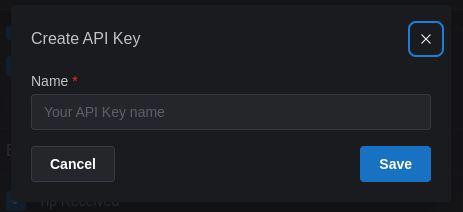
You will be shown the key only once > Copy it.
In civitai-sync, choose "Set API key", and paste the key.
(To paste, right-click > "Paste", or press "Ctrl+V" or "Ctrl+Shift+V")
Password protection
You can set a password to encrypt your API key, e.g. if you are on a shared computer. You'll enter the password each time you run the program. Or press "Enter" for no password.
Change Domain: civitai.red users
Go to Settings > Change Domain > civitai.red
This setting is visible for .red users who have "Enable Mature Settings" (18+) enabled at https://civarchive.com/user/account
Start Downloading
If your API key is saved, you can choose "Download generations" and "Download posts".
See “Options” to change what is download and where it is saved.
Download Location: inside the program folder in "data" and "media"; you can change to another location.
Choose: to make folders for your ❤️ favorited and 👍 liked gens, or to download only data.
Latest: download your most recent creations.
Or download just “Favorite / Liked” gens.
Open the Explorer
☞ Click "Start Explorer"
Data
Data is saved directly from Civitai's API, as text files (in “JSON” format). Prompts and metadata are already embedded in the media metadata (e.g. "EXIF" format).
You can explore the generation parameters and details for images and videos, in the civitai-sync Explorer.
Multiple accounts
The program is normally run as:npm run cli
To download from an alternative account, specify a unique name for it:
npm run cli bob
Change the download directory to be different for each account, unless you want the data and media for the accounts to be merged.
Problems? Thoughts? Get in touch
Make a comment, start a chat.
@monkeypuzzle
Description
New: civitai.red support, Explorer on your local network, live download progress
- civitai.red: if you use .red, use Settings > "Change Domain" to change from .com
- Download Posts: download your published posts and their images/videos
- Explorer: browse your local library of creations offline in the browser
- Explorer on your network: open the Explorer from other devices — phone, tablet, another computer. Opt-in; use on trusted networks
- Live download progress: see files found, downloaded, and current activity in real time,
- Explorer again shows prompts, parameters, model, and resources; images and videos are classified correctly
- Fix: resuming "Download all posts" now walks the full history instead of stopping at the first already-saved page
- Fix: Ctrl+C and Ctrl+D cleanly shut down the CLI and the Explorer server
FAQ
Comments (41)
Had sometime to think about it.
I have been attempting to download all my posts, and have had to stop and restart.
Prior attempts to restart have worked as I expected, combing through my posts going newest to oldest.
However, as of Mar 11, it appears to just check March 2026.
edit:
no turns out, it just doesn't update the month anymore as it works.
and it basically fails to find any stuff oldest than the last saved post.
Civitai only saves your last 30 days of generations. Are you finding that not all of the 30 days are downloaded? Please copy and paste any errors or info that you see.
@monkeypuzzle
This is for posts, not generations. (A new feature you added in 5.0 IIRC.)
Which are saved with no auto delete plan.
I was able to get it to work by using an empty folder to store things in.
I still have the old unworking set-up saved so I can see what the difference is between success and failure.
Thanks. A fix is in the new version. You are right: the failing and working setups differ only in whether the newest page was already on disk at restart time. The pager was just quitting one step too early. In the new version, a restart with a partially-populated library walks through every page until the API returns no nextCursor, so older unsaved posts get picked up without needing to redirect to an empty folder.
Just downloaded and installed (for first time) and so far so good (v502 on Windows).
Can download generated images and see them all in the browser explorer (using Chrome). But, can't see how to interrogate the EXIF/metadata.
I knows its there as can see the JSON files on PC and also when loading a downloaded JPEG into Automatic1111 the prompt and workflow data is all there. What am I doing wrong?
Nothing is wrong on your side. The Explorer doesn’t read EXIF or embedded A1111 blocks from the JPEG in the browser. It shows **prompt / negative / model / basic parameters / resources / tags** from the generation or post data JSON downloaded from the Civitai API. That’s why A1111 still sees full workflow in the file while the web UI only shows the fields from the JSON.
**How to see it in the Explorer**
1. Open the **Generations** (or **Posts**) gallery.
2. **Click a thumbnail** (not only scroll the grid). That opens the **lightbox** (full-screen overlay).
3. Look at the **right-hand column**: **Prompt**, **Negative prompt**, **Model**, **Parameters** (steps, sampler, CFG, size, seed when present), **Resources**, **Tags**, and **Open folder**.
The grid itself mostly shows the image and date (and a prompt snippet when you’re searching)—the detail is in the lightbox.
**View the JSON data**
- Open the matching `.json` next to the generation (or the post JSON) on disk—that’s the full structured record the Explorer uses.
- The UI does not currently show the raw workflow string or have a metadata/EXIF inspector.
If you'd like, feel free to describe what you would like to see if the Explorer, or the CLI, that would show the metadata you want to see. And you could link to an example image, or a few images.
Is it just on my end, or the site overhaul yesterday broke this for everyone?
yep. Moving to a different domain can have that effect. Let's hope it gets fixed soon. 🙏
Will fix shortly...
Dear monkeypuzzle, thanks for the great civitai-sync-tool. Since the big change .com to .red the lastest syncer version 5.0.2 is not working on .red anymore. I guess, a lot of guys would be happy if you will find some time for a fix. Big thanks!
Coming up...
Can we add .red as a valid API endpoint, please?
Thank you
Never mind, I got home and fixed it myself, and everything worked again. Thank you for making this easy to fix; I just had to change the API to red since it was hard-coded to .com. Thanks again.
I tried that too but not working for me
Thanks. I'll get the code change shortly.
@UwUma Since OP will take care of it soon, we should be good. However, if you need help, let me know, and I can send you mine.
@Elly202 I wrote red without e, my bad XD now is working ajhsgdahjgas
@UwUma Glad you got it working :D
Back from holiday...
Hello, all concerned users of Civitai.red, the fix to Civitai-Sync is coming shortly. In the meantime, you can manually edit the tool's files to change API links from .com to .red and then re-run the tool.
Stand by for a new version
RELEASE v5.1.0:
- civitai.red: use Settings > "Change Domain", to switch from .com to .red
- Download Posts: download your published posts and their images/videos
- Explorer: browse your local library of creations offline in the browser
- Explorer on your network: open the Explorer from other devices — phone, tablet, another computer. Opt-in; use on trusted networks
- Live download progress: see files found, downloaded, and current activity in real time,
- Explorer again shows prompts, parameters, model, and resources; images and videos are classified correctly
- Fix: resuming "Download all posts" now walks the full history instead of stopping at the first already-saved page
- Fix: Ctrl+C and Ctrl+D cleanly shut down the CLI and the Explorer server
thank you so much - works again perfectly.
woo! finally got around to doing this.
thanks for having the change domain as the top change in the note
@monkeypuzzle im having a n issue on the mac side.. when i run the app to download posts. it runs through the process but it doesnt place the images in the folder with the newerst version.. i also did this with a fresh install as well. update.. i fixed it.. i have ti run the installer with sudo commands first.. whew
@AyeYouNeek you shouldn't need sudo. If you still have it, could you copy-and-paste the error, either here or in a private chat message?
@monkeypuzzle let me see if i have that terminal window still open
Thank you so much for this.
It fulfills all my backup and browsing needs, and it makes accessing the prompts+settings I used in the past so easy! ♥
Finally the tool I've been looking for! Thanks a lot for making this! Have you thought of adding an option to filter by rating (PG, PG13, R, X, XXX)? That'd be very useful.
Hey. Thanks, glad it helps. Do you mean: to choose your downloads by rating? Or to be able to filter images by rating in the Explorer website?
@monkeypuzzle I mean in the Explorer website.
@TheJanetVanDyneFan Thanks - I thought you must mean that. It's a good idea, I will take it on board.
@monkeypuzzle Thank you! Looking forward to it! This will make them easier to manage.
Any plans for comics/audio support?
Does feel something like of request scope creep rather than something you added without being asked or a probable bug/error out fix, so I can take a "no" here with grace.
You can always ask... I have no plans, but yes, Comics download would be good.
I see that Comics are downloadable in pdf and cbz format, for each chapter. That would be possible.
Is audio generation available, outside of video?
@monkeypuzzle
re:audio
yup https://civitai.red/models/2549270/ace-step-audio-gen?modelVersionId=2864949
There is no support for posting audio at this point. and the audio doesn't say around for the full 30 dsys in the queue.
@sawbladex818 Thanks. Audio generations don't stay for 30 days? How long they stay for, and why not 30 days (you may not know why)? Is this stated anywhere, or based on experience?
@monkeypuzzle based on experience, sadly. haven't spent time trying to find documention for the exact reason.
On reflection, the whole audio generation even more rough than a lot of things on this site, so I wouldn't be surprised if it get radically redone or cut sooner rather than later.
@monkeypuzzle
decided to double check, and the music is there.
Please ignore my "music doesn't last 30 days in the queue." comment. it is wrong
@sawbladex818 - thanks for confirming, and thanks for bringing comics and audio into my awareness. I better start making some music and zines.
Can this download all images or videos from a model gallery or user?
I've just discovered wan and I am spending a ton of time not only downloading the models; but countless 4-8 mb videos.
It can download all of your images and video, and let you view them grouped by model/resource. No, it doesn't download other user's media. Would you want to download all media from a model?