System Prompt – Usage Instructions
1. Technical Setup
This system prompt was designed and tested in LM Studio.
Test model: qwen3-v1-8b-instruct q6_k.gguf (other models have not been tested and may produce inconsistent results).
2. Creating a Preset in LM Studio
Open LM Studio. Create a new preset. Copy the full contents of the .txt system prompt file.
Paste it into the System Prompt field. Save the preset.
3. Recommended Model Settings (Qwen3)
Use the following parameters for stable and consistent output:
Temperature: 0.7 : Top-K: 40 : Top-P: 0.95 : Repeat Penalty: 1.1
These values balance creativity with structure, ensuring the model follows the strict prompt rules while still generating varied outputs.
4. How to Trigger Prompt Generation
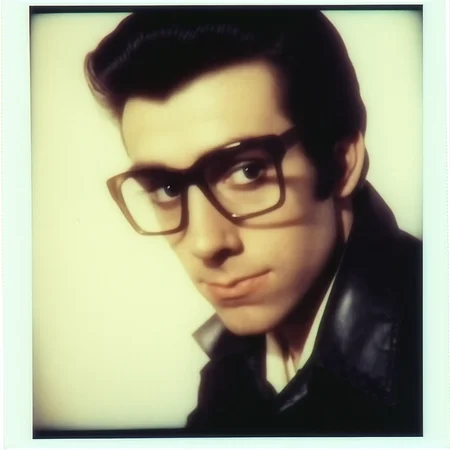
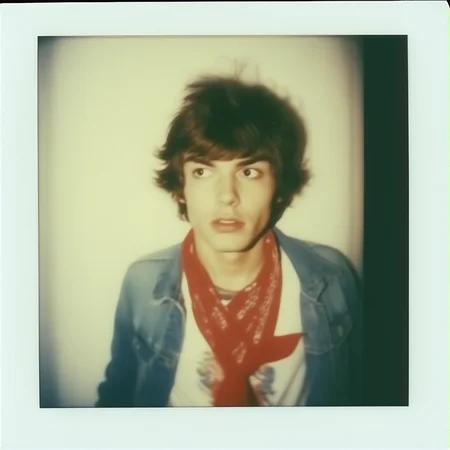
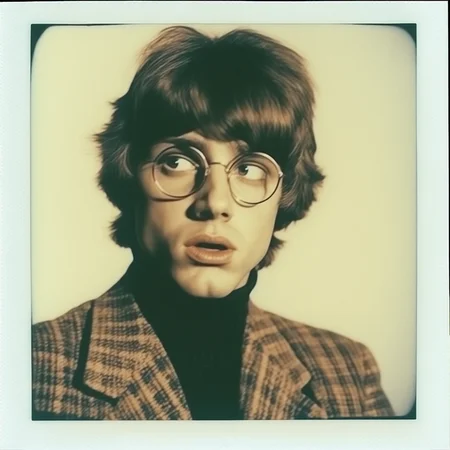
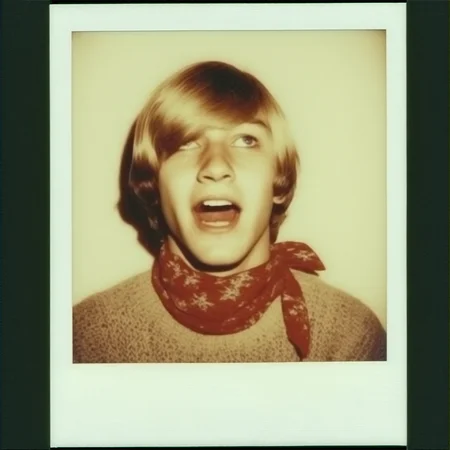
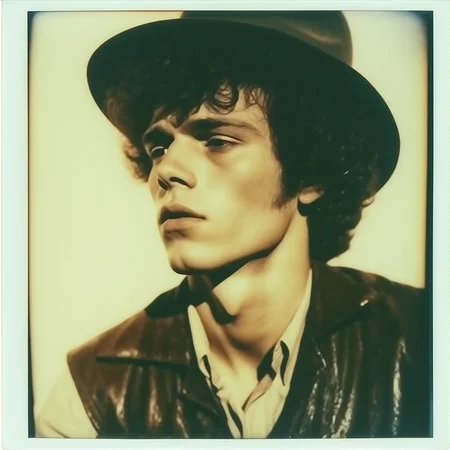
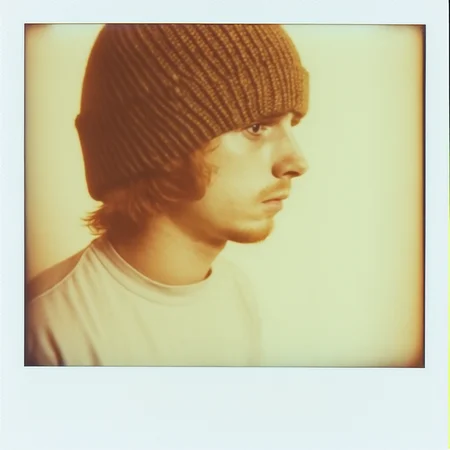
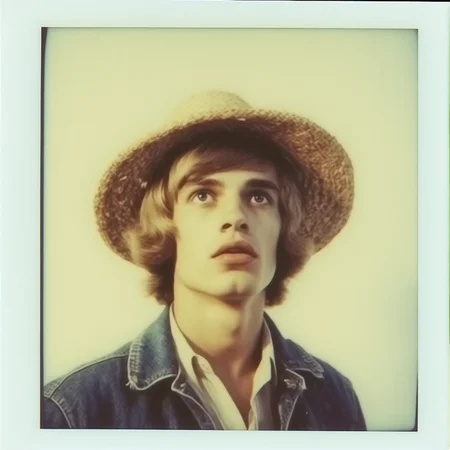
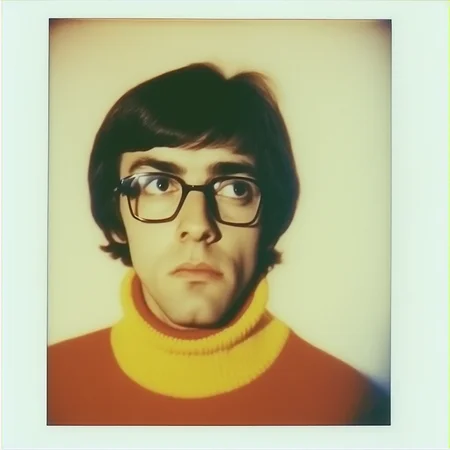
The system is activated using age keywords. Type one of the following and send it as your input: teenage boy, young adult man, adult man, elderly man
Important: Use only one keyword per prompt. The model will generate a complete portrait prompt based on this input. Do not add extra text unless you intend to modify behavior.
5. Image Generation Model
This prompt is optimized for: chroma-unlocked-Q4_K_S v48-detail-calibrated https://civarchive.com/models/1807633?modelVersionId=2183592
Copy prompt from LM Studio and paste as positive prompt. Negative prompt: no. Why, because analog style cannot be perfectly pure digital.
6. You can also add your own short descriptions by modifying the system prompt (overly long descriptions can cause behavioral changes, qwen will only select the first phrases or generate the same prompt over and over).
7. CFG 3.5 generates more interesting effects.
8. This prompt will not work with zImage-Base, zImage-Turbo, Flux2Klein, or Ernie models, as these models generate images that are too clean, too digital, and it's necessary to break this aesthetic.
9.Possible problems: If Qwen keeps generating the same prompt, delete the preset and add a new one. If that doesn't help, right-click on the current chat, select [show in file explorer], and delete the .txt file that stores information about the current session. New session, load the preset.
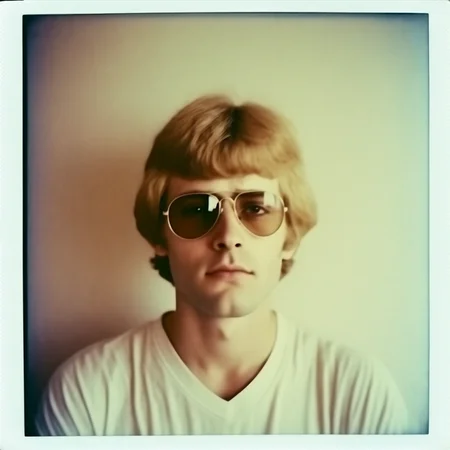
P.S. By default, the model will only generate dark hair. You can change this by manually entering a hair color in the positive prompt, e.g., dark, brown, blonde, gray, or red, but this will affect the final image aesthetic.
Description
Looks like we don't have an active mirror for this file right now.
CivArchive is a community-maintained index — we catalog mirrors that volunteers upload to HuggingFace, torrents, and other public hosts. Looks like no one has uploaded a copy of this file yet.
Some files do get recovered over time through contributions. If you're looking for this one, feel free to ask in Discord, or help preserve it if you have a copy.