ComfyUI - Hidden faces and text (by ThinkDiffusion)

We have previously created tutorials on generating hidden faces and text in Automatic1111. Now, it's time to replicate this in ComfyUI. This ComfyUI workflow lets you upload an image, enter your prompt, and produce amazing hidden faces and text!
Setting up
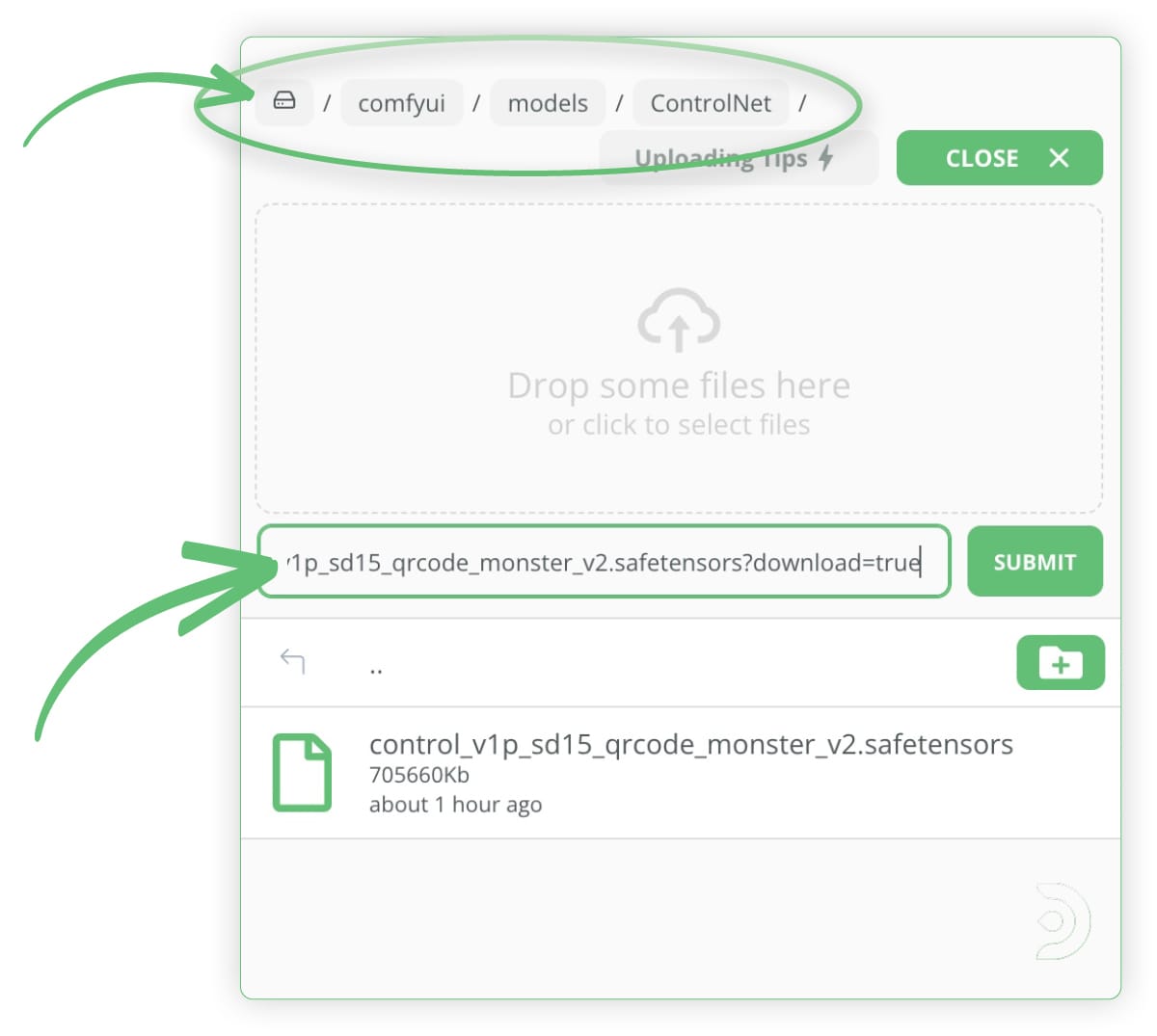
Make sure you're file browser is navigated to the ThinkDiffusion folder:
../user_data/comfyui/models/ControlNet/
We will need to upload the QR code monster controlnet model version 2, which can be downloaded from this link QRCode Monster.
Just copy the file path above into the file path field in ThinkDiffusion, where it will transfer directly.
Hidden faces
Firstly, download this workflow and load it on your ComfyUI instance on ThinkDiffusion. You can load it by simply dragging the file over the interface.
ThinkDiffusion_Hidden_Faces.json
Let's see if we can blend Homer Simpson into some trees and clouds! Once you have loaded the workflow listed above, you will need to upload your starting image into the Load Image node, as shown in the image below.
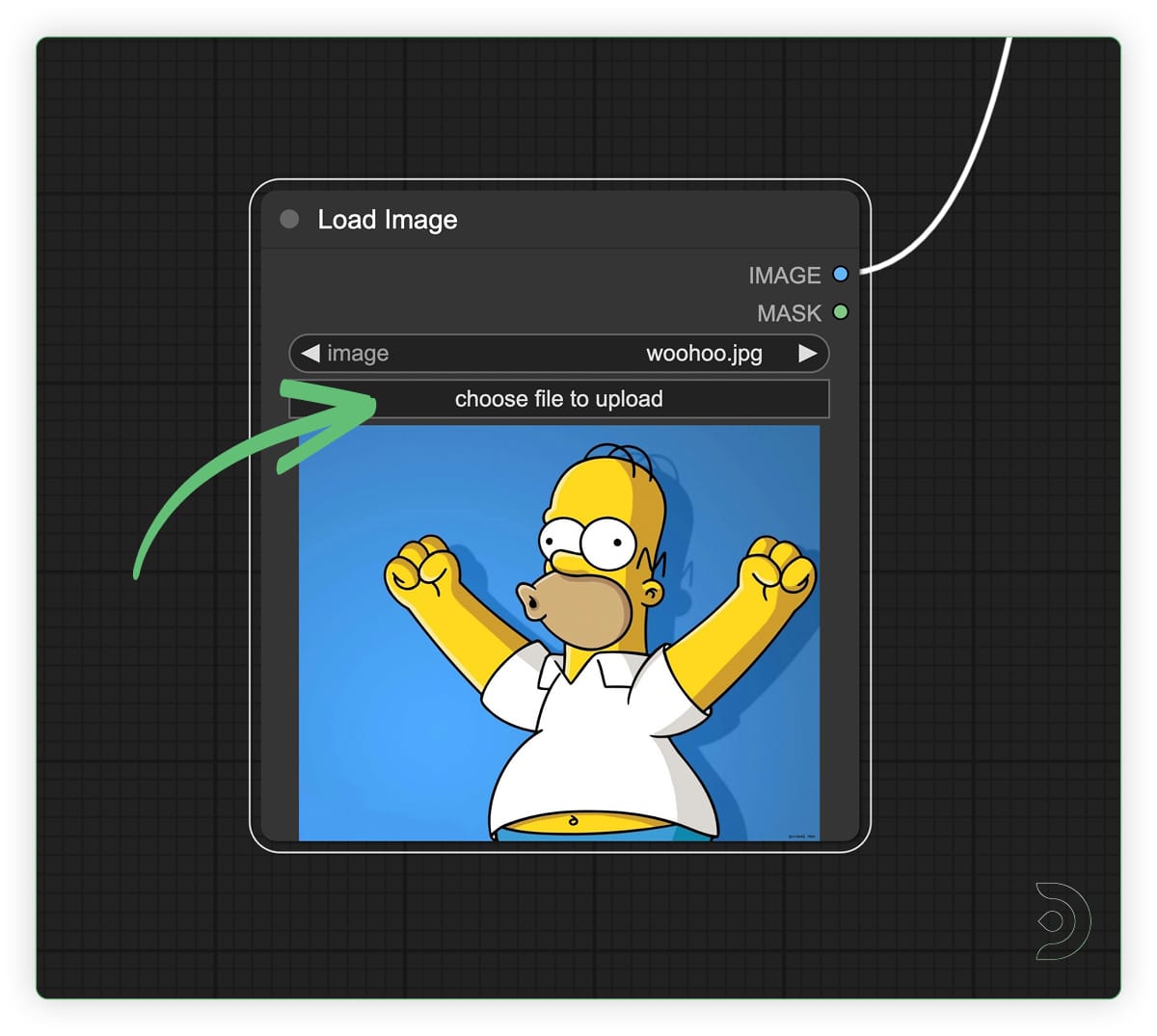
Upload your image to the Load Image node in ComfyUI
Positive Prompt: 'tree, sunshine, blue sky, 4k, ultra detailed, masterpiece'
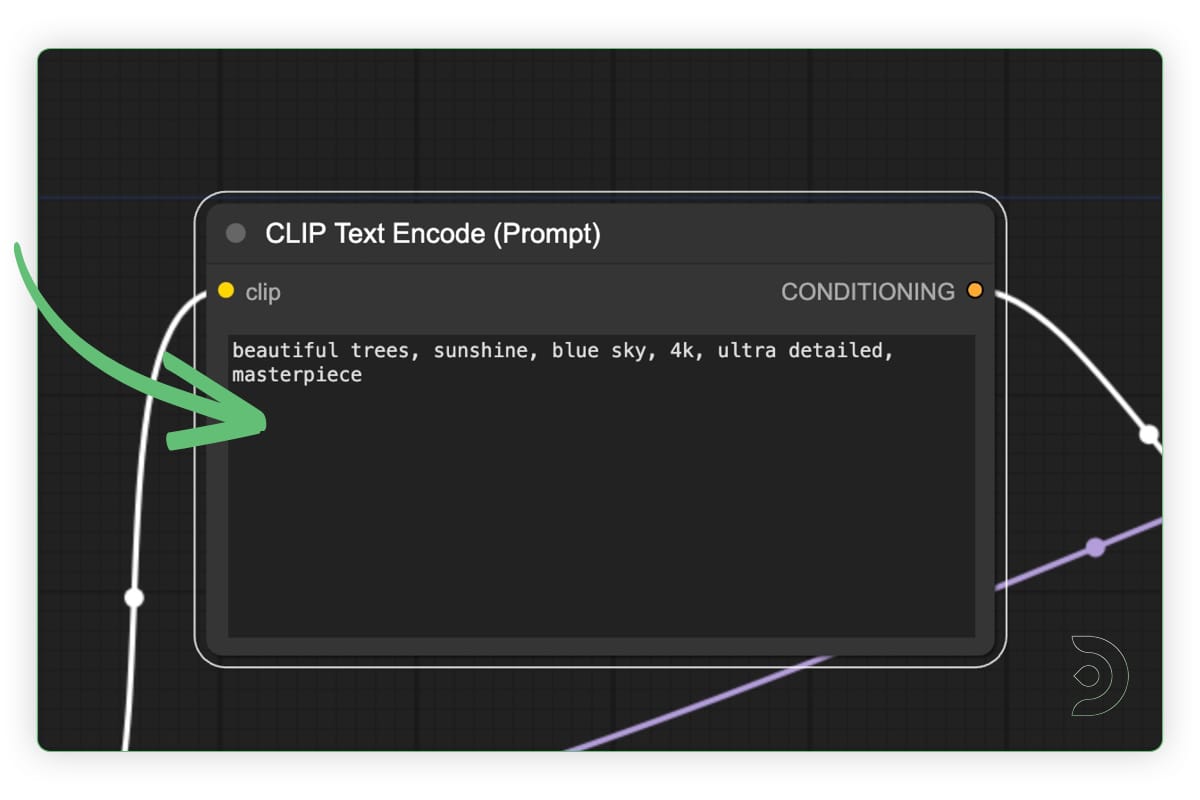
Type in your positive prompt, where your image will be blended into
Make sure to select the QR code monster controlnet model that we downloaded earlier in the Load ControlNet Model node
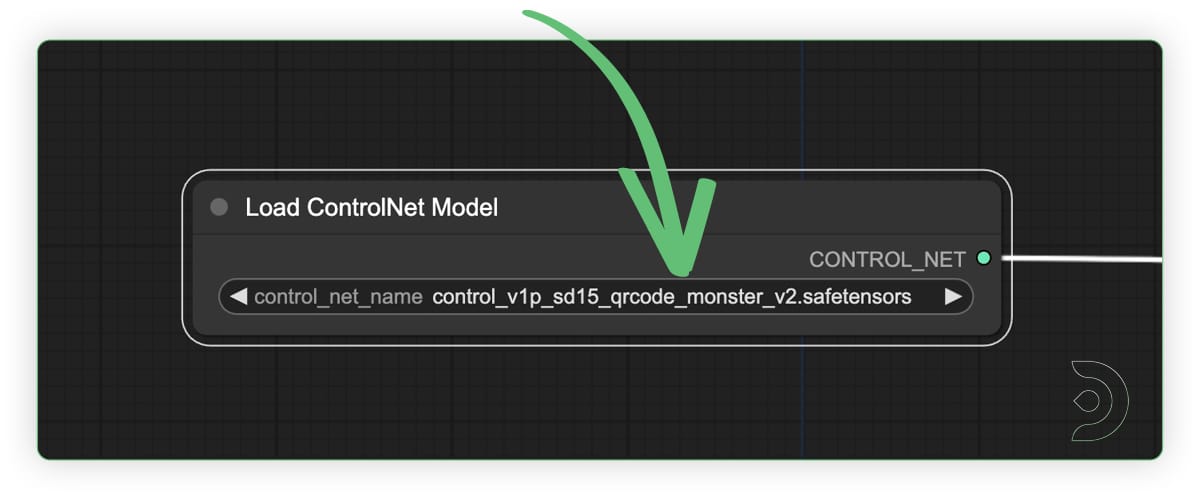
Select the qrcode monster controlnet model
You can adjust the resolution in the Empty Latent Image node, to match the input image. I have left this as the default 512 x 512.
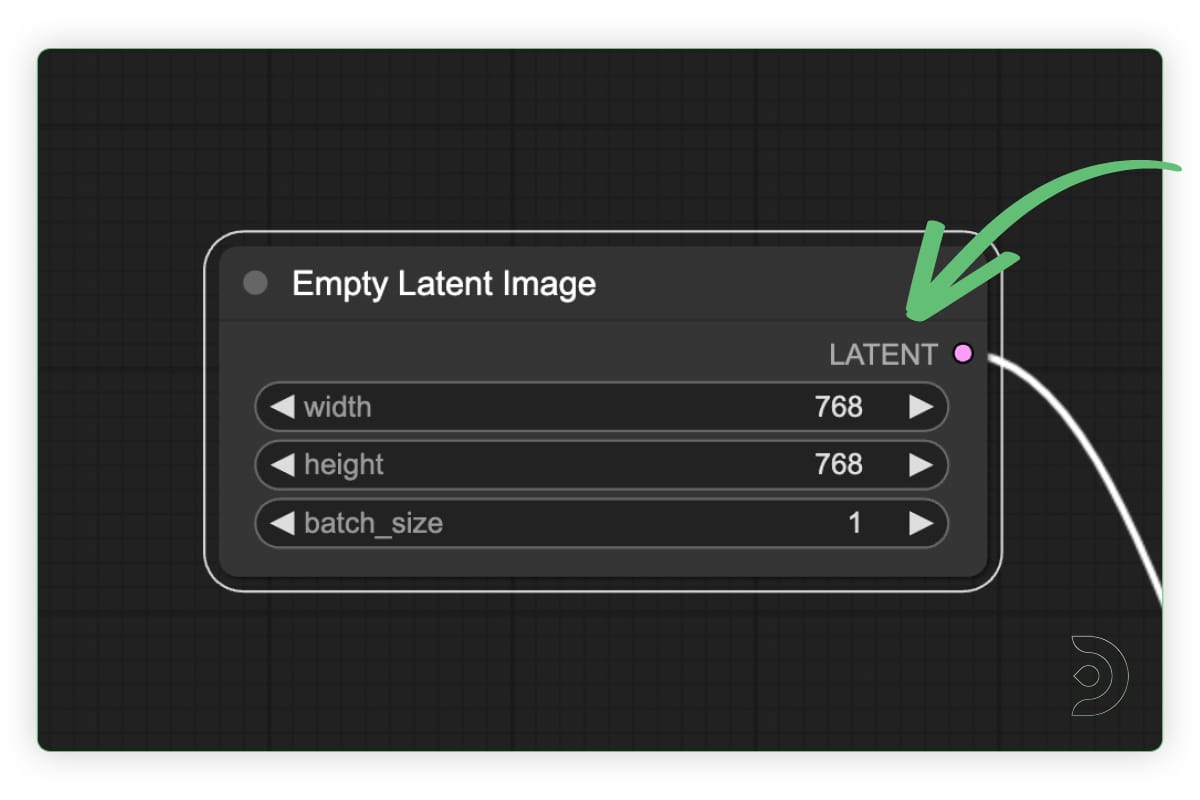
Set your resolution to the width and height that you want in the Empty Latent Image node
Hit Generate (aka Queue Prompt)!

Hiding Homer in ComfyUI with the QRcode monster controlnet model
Hidden text
Now that we have blended a character into an image, let's see if we can generate hidden text within an image. We can create the lettering in paint.net, which shows us we can hide any text that we want to! Here's the text I am using:

COMFYUI image to be used in our workflow
You can keep the same settings as the hidden faces. If you're uploading a new image, it is better to match the resolution of the starting image.
Positive Prompt: 'fried chicken, 4k, ultra detailed, masterpiece'
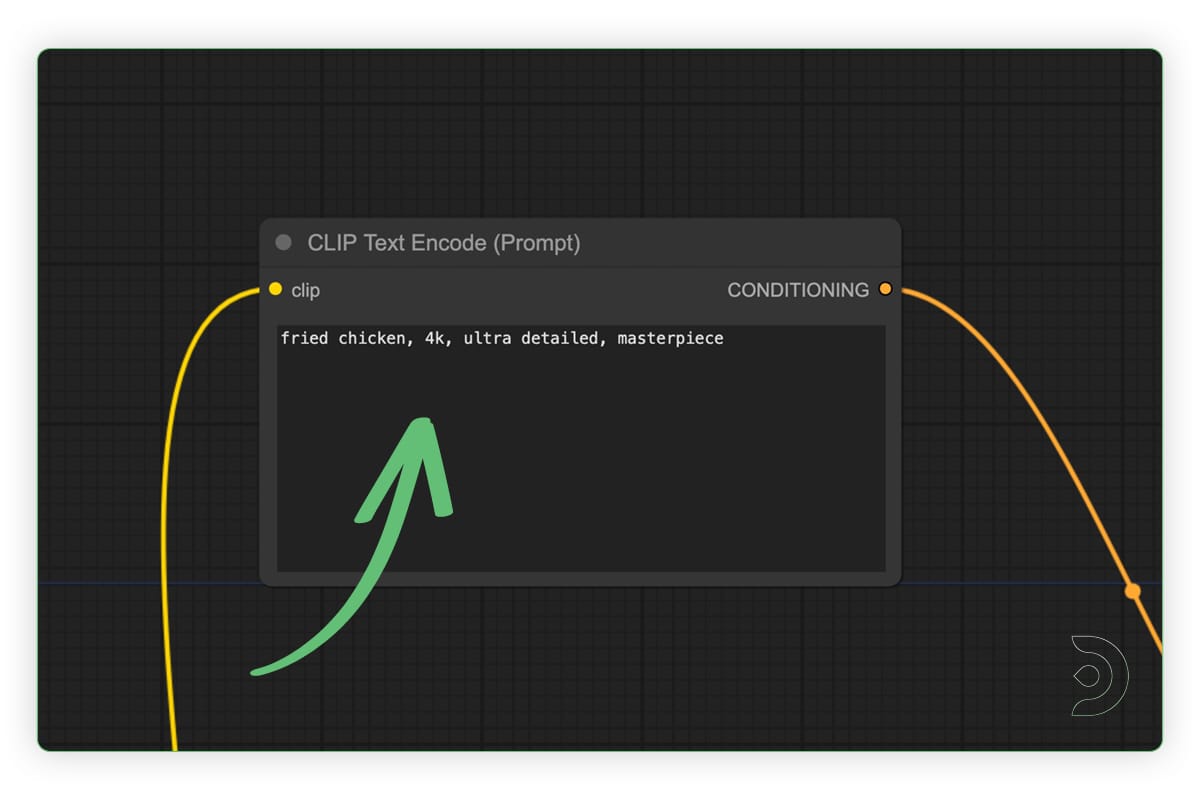
Positive text prompt
Hit Generate (aka Queue Prompt)!
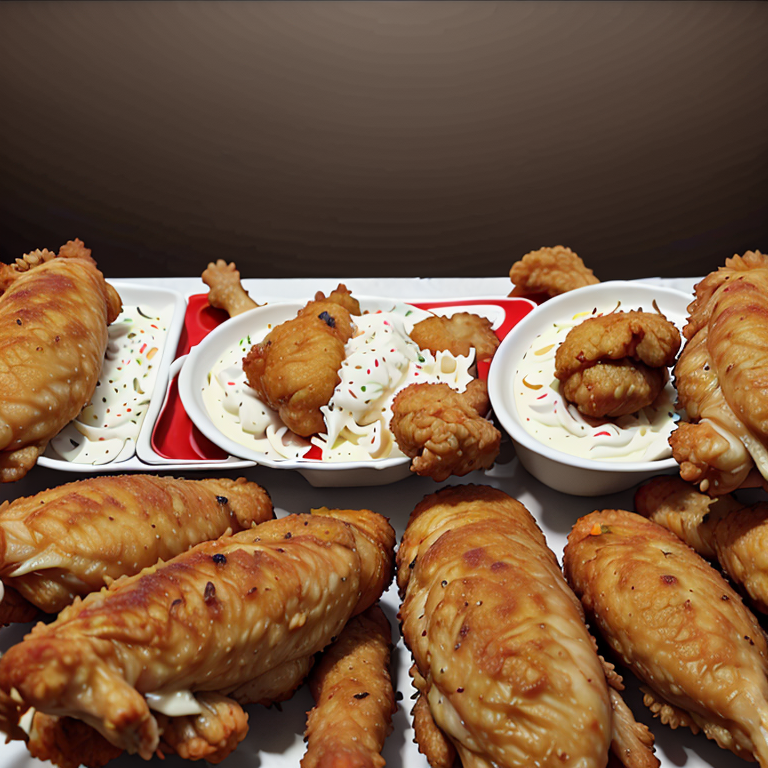
Using ComfyUI to hide text in an image
Any of our workflows including the above can run on a local version of SD but if you’re having issues with installation or slow hardware, you can try any of these workflows on a more powerful GPU in your browser with ThinkDiffusion.
If you’ve ever generated AI art and cringe when a face doesn't come out as you had expected, check out my post using ComfyUI FaceDetailer.
And as always have fun hiding.

Original article can be found here: https://learn.thinkdiffusion.com/create-hidden/