Hunyuan Image 2.1 by Tencent Full Tutorial and 1-Click to Install Ultra Advanced App to Use Locally

Tutorial video link : https://youtu.be/dNeA5mJ36hA
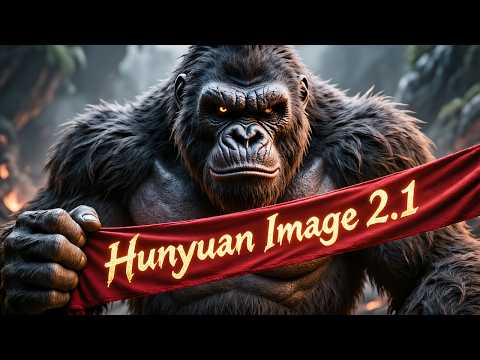
Hunyuan Image 2.1 just published by Tencent and I have been working on developing the very best app to let you use HunyuanImage-2.1 with easiest and most accurate way. In this tutorial video, I will show you how to literally 1-click to install this model and our app on Windows (locally), Massed Compute (cloud) and RunPod (cloud).
SECourses HunyuanImage 2.1 Pro link : https://www.patreon.com/posts/138531984
Comparison Slider : https://www.patreon.com/posts/133935178
Hugging Face upload / download tutorial : https://youtu.be/X5WVZ0NMaTg
Our Discord : https://discord.com/servers/software-engineering-courses-secourses-772774097734074388
Our Reddit : https://www.reddit.com/r/SECourses/
My LinkedIn : https://www.linkedin.com/in/furkangozukara/
Video Chapters
Hunyuan Image 2.1 Gradio App Tutorial - Video Timestamps
Introduction & Overview
0:00 - Introduction to Hunyuan Image 2.1 Gradio App
0:50 - Detailed Application Feature Overview
1:20 - Seed, Image Count, Auto-Enhance & Refiner Features
1:57 - Aspect Ratio, Resolution & Advanced CFG Settings
2:30 - Config Management, Prompt Tools & Image Refinement
3:13 - Output Management: Saved Images & Metadata
3:43 - One-Click Installer & Robust Downloader Explained
Windows Installation
4:33 - Windows Installation Guide - Getting Started
5:41 - Windows - Fixing Model Downloads & Current Limitations
Massed Compute Setup
6:38 - Massed Compute Setup - Deploying an Instance
7:32 - Setting Up ThinLinc for Remote Desktop Access
8:33 - Connecting to Massed Compute & Transferring Files
9:56 - Massed Compute - Running the Installation Script
10:53 - Troubleshooting Model Downloads on Massed Compute
11:34 - Running the Application & First Image Generation
Features & Usage
13:52 - Improving Prompts with Auto-Enhance Feature
15:34 - Using the Refiner for Higher Quality Images
16:23 - Comparing Before & After Refiner Results
17:32 - How to Use Multi-Line Prompting
17:55 - Backing Up Your Generated Images from Massed Compute
19:59 - How to Properly Terminate Your Massed Compute Instance
RunPod Installation
20:20 - RunPod Installation Guide - Introduction
21:06 - Setting Up Your RunPod Instance (GPU & Template)
22:09 - Connecting to RunPod & Starting the Installation
23:53 - RunPod - Model Download & Troubleshooting
25:06 - Running the Application on RunPod
26:08 - How to Back Up Your Data from RunPod
27:43 - How to Properly Terminate Your RunPod Instance
Some App Screenshots


Some Images Generated With Hunyuan Image 2.1 - Raw 2560x1440 pixels and 8 Steps Refiner applied
This model native resolution is 2048x2048 pixels


